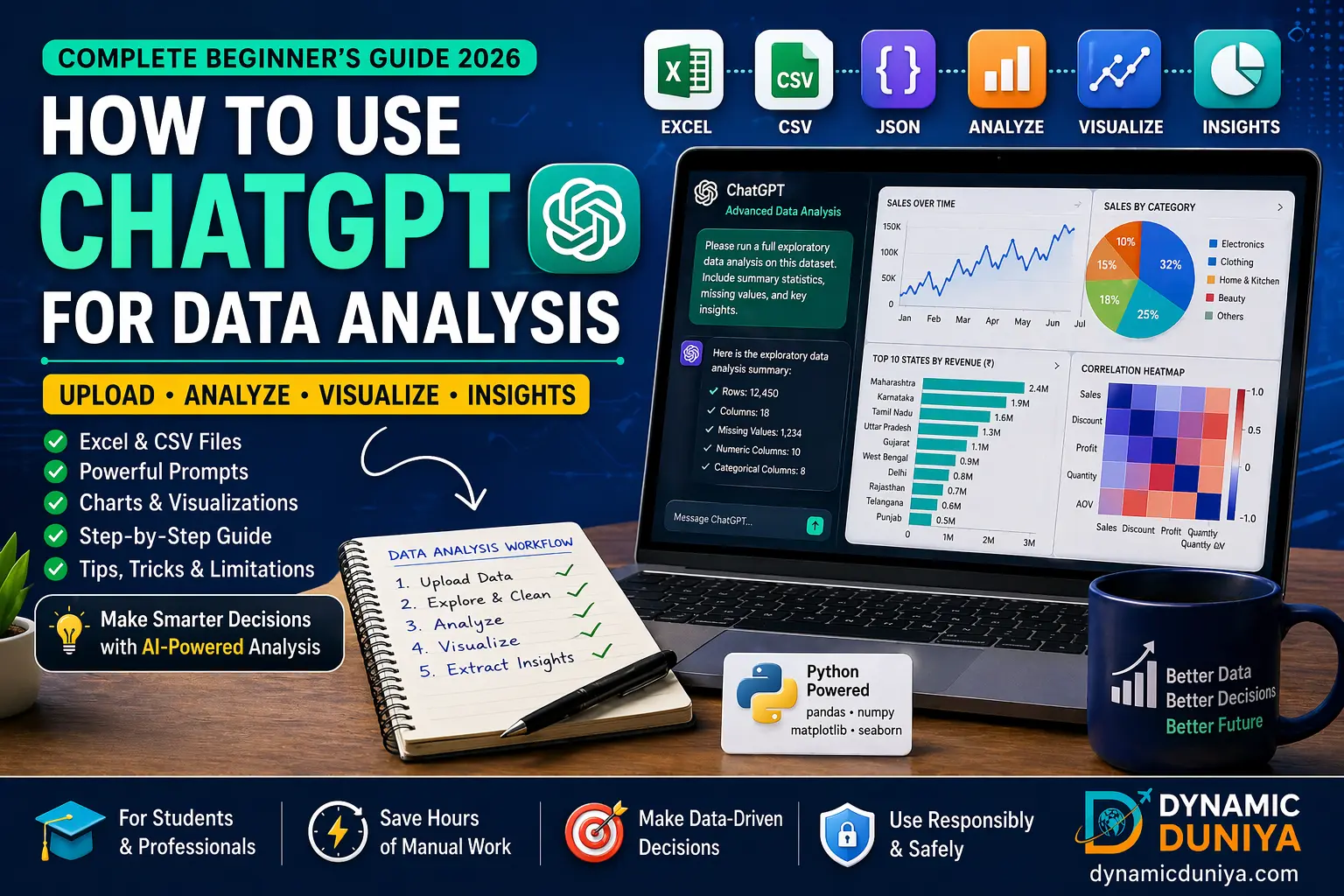
Whether you're a student trying to make sense of survey data or a working professional handling business reports, learning how to use ChatGPT for data analysis can cut hours off your workflow. This complete beginner's guide for 2026 walks you through everything — from basic prompts to uploading Excel files, building visualizations, and applying advanced techniques.
Whether you're a student trying to make sense of survey data or a working professional handling business reports, learning how to use ChatGPT for data analysis can cut hours off your workflow. ChatGPT, particularly with its Advanced Data Analysis feature (formerly Code Interpreter), has transformed from a conversational chatbot into a surprisingly capable data tool. This guide covers everything from first principles — what ChatGPT can actually do with data — to real, copy-paste-ready prompts, file upload workflows, and honest limitations you should know before you rely on it. By the end, you'll know exactly how to use ChatGPT to analyze data for your specific use case, whether that's cleaning a messy CSV, building a quick chart, or running exploratory analysis on an Indian e-commerce dataset.
Advanced Data Analysis (ADA) is a built-in capability within ChatGPT (available on ChatGPT Plus and above) that gives the model access to a sandboxed Python environment. When you upload a file and ask it to analyze the data, ChatGPT doesn't just read text — it actually executes Python code, processes the file, and returns results, charts, and summaries directly in the chat window.
Before this feature existed, ChatGPT data analysis was limited to text-based reasoning. You could paste a small table and ask questions, but ChatGPT would "reason" about the numbers rather than compute them. ADA changed that. Now it uses libraries like pandas, matplotlib, seaborn, and scipy under the hood — you just don't have to write any of the code yourself unless you want to.
This is particularly relevant for people following a structured Learning Path in data science who want to start seeing results quickly without waiting until they've mastered Python. ADA acts as a scaffolding layer — it lets you do real analysis while you're still learning the underlying skills.
What ADA can do in practice:
What it cannot do is covered in the limitations section — but the gap between expectation and reality is where most beginners hit trouble, so read that section before you build a workflow around it.
Yes — but with important caveats that most tutorials skip over. The short answer is that ChatGPT can analyze data quite effectively for exploratory and descriptive tasks. The longer answer is that the quality of the analysis depends heavily on how you prompt it, what kind of data you're working with, and which version of ChatGPT you're using.
Without file upload (text-only mode), ChatGPT will reason about data you paste directly into the chat. This works for small tables — say, 10–20 rows — but the model can make arithmetic errors on larger datasets because it's doing language-based inference, not computation. Never trust text-only ChatGPT for numerical accuracy on datasets with more than a handful of rows.
With Advanced Data Analysis enabled and a file uploaded, the situation is different. ChatGPT runs actual Python, which means the math is correct. The analysis is only as good as the code it generates, and it occasionally writes code with bugs — but it also debugs itself when it catches an error, which is genuinely useful.
For students working on academic projects or professionals in Indian startups who need quick exploratory analysis before handing data off to a BI tool, using ChatGPT to analyze data at this level is legitimate and time-saving. It's not a replacement for a data analyst or a proper analytics pipeline, but as a first-pass tool, it earns its place. You can explore more structured approaches through Data Science Tutorials to build the foundational knowledge that makes ChatGPT even more useful.
The following walkthrough assumes you have a ChatGPT Plus subscription (required for Advanced Data Analysis and file uploads). If you're on the free tier, you can still use the text-based prompting techniques — just limit yourself to small, pasted data.
Log into ChatGPT and make sure you're using GPT-4o or the model labelled with "Advanced Data Analysis" capability. In the model selector, look for the option that explicitly mentions data analysis or code execution. If you see a paperclip icon in the chat input, file upload is available.
Before uploading anything, write a brief context message. Tell ChatGPT what the dataset is about, what your goal is, and what you already know. This primes the model and dramatically improves the quality of its initial analysis. Example: "I'm going to upload a sales CSV from an Indian FMCG company covering Q1 2025. I want to understand which product categories are driving the most revenue and identify any seasonal patterns."
Click the paperclip or attachment icon and upload your CSV, Excel (.xlsx), or JSON file. ChatGPT will immediately attempt to read it and will usually confirm what it found — number of rows, columns, and a preview of the data. At this point, verify that ChatGPT's summary matches what you expect. If it misreads column names or data types (e.g., treating a date column as a string), correct it now before asking any analytical questions.
Keep file sizes reasonable. Files under 50MB work reliably. Very large files may be truncated or cause errors. If your dataset is large, consider uploading a representative sample first to test your prompts.
The single most valuable first prompt for any new dataset is a request for a full EDA. This gives you an immediate overview before you start asking specific questions. A good EDA prompt:
"Please run a full exploratory data analysis on this dataset. Include: shape of the data, data types of each column, missing value counts, basic descriptive statistics for numerical columns, and value counts for categorical columns. Flag anything that looks unusual."
ChatGPT will generate and run Python code, then return a structured summary. This takes 30 seconds and replaces what would otherwise be 15–20 minutes of manual inspection. Once you understand the structure of your data, you're ready for targeted analysis. If you're also learning Python in parallel, reviewing the generated code is a great learning exercise — you'll find full reference material in the Python Programming Tutorials.
Raw data is almost never analysis-ready. Ask ChatGPT to handle common data quality issues before running any analysis:
"Clean this dataset. Handle missing values using median imputation for numerical columns and mode for categorical ones. Remove duplicate rows. Convert the 'Order Date' column to datetime format. Strip leading/trailing whitespace from all string columns."
ChatGPT will run this and confirm what was changed. Ask it to show you a before/after comparison if you're uncertain about any transformations. One important habit: always ask ChatGPT to explain why it made certain data cleaning choices, not just what it did. This keeps you in control of the analytical decisions.
With clean data, move to specific questions. The more precise your question, the more useful the answer. Vague prompts like "analyze this" produce generic outputs. Specific prompts like "which five states in India had the highest average order value in Q3, and how does that compare to Q2?" produce actionable results.
Ask follow-up questions based on what you see. ChatGPT maintains context within the conversation, so you don't need to re-upload the file or re-explain the dataset for each question. This iterative questioning is where ChatGPT analytics genuinely shines compared to writing queries manually.
At the end of your analysis session, ask ChatGPT to give you the complete Python code it used. This serves two purposes: you can re-run the analysis on updated data, and you can use the code as a learning resource. Ask it to add comments explaining each step. You can also ask it to save summary outputs as a CSV or generate a downloadable chart file.
"Give me the complete, commented Python script for everything we did in this session so I can run it locally in Jupyter Notebook."
The difference between a useful ChatGPT session and a frustrating one is almost entirely in how you write your prompts. These are real, field-tested ChatGPT prompts for data analysis — not generic templates. Each one is written to extract something specific.
Prompt 1 — Full EDA:
"Run a complete exploratory data analysis on this dataset. Report the shape, data types, missing value percentages per column, descriptive statistics for all numeric columns, and top 5 value counts for all object/category columns. Highlight any columns where more than 20% of values are missing."
Prompt 2 — Data Quality Report:
"Act as a data quality auditor. Identify all potential data quality issues in this dataset: missing values, duplicate rows, outliers (using IQR method), inconsistent formatting in string columns, and columns with near-zero variance. Output a summary table."

Prompt 3 — Smart Imputation:
"For this dataset, impute missing numerical values using median for columns that appear right-skewed and mean for normally distributed ones. For categorical columns, use mode. Show me the distribution of each column before and after imputation."
Prompt 4 — Outlier Handling:
"Identify outliers in all numeric columns using the IQR method. For each column with outliers, tell me: how many outliers exist, what their values are, and ask me whether I want to remove them, cap them at the fence values, or leave them. Wait for my response before making changes."
Prompt 5 — Correlation Analysis:
"Calculate the Pearson correlation matrix for all numeric columns. Identify the five strongest positive and five strongest negative correlations. Flag any correlations above 0.85 that might indicate multicollinearity if I'm planning to build a regression model."
Prompt 6 — Group Comparison:
"Group the data by [column name] and calculate the mean, median, and standard deviation of [target column] for each group. Then run a one-way ANOVA test to check whether the differences between groups are statistically significant (alpha = 0.05). Interpret the result in plain English."
Prompt 7 — Time Series Trends:
"This dataset has a date column called 'Order Date'. Resample the data by month and calculate total sales and order count per month. Plot a dual-axis line chart showing both metrics. Annotate the chart with the month that had the highest and lowest sales."

Prompt 8 — Dashboard-Style Summary:
"Create a 2x2 subplot figure with: (top left) a histogram of [column], (top right) a bar chart of top 10 values in [categorical column], (bottom left) a scatter plot of [col A] vs [col B] colored by [category column], (bottom right) a box plot of [column] grouped by [category]. Use a professional color palette and add titles to each subplot."
Prompt 9 — Heatmap for Categorical Relationships:
"Create a pivot table and heatmap showing the average [target column] broken down by [row category] and [column category]. Use a diverging color palette centered at the overall mean. Annotate each cell with the actual value."
Prompt 10 — India-Specific Market Analysis:
"This dataset contains e-commerce orders from Indian states. Group by state and calculate total revenue, average order value, and order count. Create a ranking table. Identify the top 5 and bottom 5 states. Flag any states where average order value is more than one standard deviation above or below the national mean."
For more structured guidance on how to write analytical queries, check out the How To Category on Dynamic Duniya — there's a growing collection of workflow guides for data practitioners.
File uploads are the most practical way to do ChatGPT data analysis on real-world data. Here's what you need to know to avoid the most common friction points.
Supported formats: ChatGPT Advanced Data Analysis handles CSV, XLSX (Excel), JSON, TSV, and plain text files. For Excel files with multiple sheets, specify which sheet you want analyzed — ChatGPT will usually default to the first one but can be told to work with a named sheet.

Before uploading, prepare your file:
After uploading, always verify: Ask ChatGPT to print df.head() and df.dtypes before any analysis. Confirm that the number of rows matches what you expect, and that numerical columns haven't been read as strings (a common issue when currency symbols like ₹ are included in cells).
For large Excel files with Indian financial data — common when analysts export from Tally, SAP, or Zoho Books — the ₹ symbol and comma-formatted numbers (e.g., "1,23,456") often cause parsing failures. Tell ChatGPT explicitly: "The currency column uses Indian number formatting with the ₹ symbol. Strip the symbol and commas before converting to float."
Once your data is loaded and verified, the full range of analytical prompts from the previous section applies. You can also ask ChatGPT to save a cleaned version of your data as a downloadable CSV, which is useful when you want to take the cleaned data into another tool like Power BI or Tableau. If you want to practice on real datasets first, Free Datasets on Dynamic Duniya has curated sources to work with.
One of the most underrated capabilities of advanced data analysis ChatGPT is visualization generation. You describe what you want, and it writes and executes the matplotlib or seaborn code, then shows you the rendered chart directly in the chat.
The default charts ChatGPT produces are functional but not always publication-ready. Here's how to get better output:
Be specific about chart type and what it should show. "Make a chart" is useless. "Make a horizontal bar chart sorted descending by revenue, showing the top 15 Indian cities, with the bar for Mumbai highlighted in a different color" gives ChatGPT enough to produce something genuinely useful.
Request a professional style explicitly. Tell it to use the seaborn whitegrid style, increase font sizes for readability, add axis labels with units, and include a descriptive title. Without these instructions, the default output often has tiny labels and no context.
Heatmaps are particularly valuable for correlation matrices and pivot table summaries. A prompt that works well:
"Create a correlation heatmap for all numeric columns. Use the 'coolwarm' colormap, annotate each cell with the correlation coefficient rounded to 2 decimal places, and mask the upper triangle to avoid redundancy. Set the figure size to 12x10."

For time-series visualization with Indian business data, rolling averages are often more informative than raw daily values. Ask for a 7-day or 30-day rolling average overlaid on the raw data, with shaded confidence bands.
One genuine limitation: ChatGPT cannot produce interactive charts (Plotly, Bokeh) within the chat interface itself. It can write the code for an interactive chart that you run locally, but the in-chat preview will always be a static image. If interactivity matters, ask it to write the Plotly code and run it in your own environment — the Python Programming Tutorials cover setting up a local data science environment.
Most guides focus exclusively on numerical data, but ChatGPT for data analytics also handles qualitative data — and in some ways, this is where it's most distinctly valuable compared to traditional tools.
Text classification without training a model: If you have a column of customer feedback, survey responses, or social media comments, you can ask ChatGPT to classify each entry into categories you define. For small datasets (a few hundred rows), paste the data directly. For larger sets, process it in batches.

"Here are 50 customer support tickets from an Indian SaaS company. Classify each one into one of these categories: Billing Issue, Technical Bug, Feature Request, Account Access, or General Inquiry. Return a table with the original text and your assigned category."
Sentiment analysis: ChatGPT performs surprisingly well at nuanced sentiment analysis, especially for Indian English which has specific idioms and patterns that commercial sentiment APIs often misclassify.
"Analyze the sentiment of each customer review in this dataset. Use a three-point scale: Positive, Neutral, Negative. For any review that mentions price specifically, add a secondary tag 'Price Sensitive'. Return results as a CSV table."
Thematic analysis: For open-ended survey responses, ChatGPT can identify recurring themes and generate a frequency summary. This replaces several hours of manual coding in qualitative research. The output won't meet the rigour required for academic publication without human verification, but for business intelligence purposes it's genuinely fast and useful.
Named Entity Recognition (NER): Extract company names, locations, people, and other entities from unstructured text. Useful for processing news data, earnings call transcripts, or scraped web content.
These are the techniques that separate people who get mediocre results from those who genuinely accelerate their work using advanced data analysis ChatGPT.
Any honest guide has to spend real time here, because the limitations of chat GPT data analysis are significant and get glossed over in most tutorials.


ChatGPT is not the only AI tool capable of data analysis, and it's not always the best choice. Here's how it stacks up against the main alternatives:
| Tool | Best For | File Upload | Code Generation | Visualizations | Free Tier | Data Privacy |
|---|---|---|---|---|---|---|
| ChatGPT (ADA) | General EDA, quick analysis, beginners | Yes (CSV, Excel) | Excellent (Python) | Static (matplotlib/seaborn) | Limited (Plus required for ADA) | Moderate risk — check opt-out settings |
| Google Gemini | Google Sheets integration, Drive data | Yes (Google Drive) | Good | Good (Google Charts integration) | Yes (basic) | Subject to Google data policies |
| Microsoft Copilot (Excel) | Excel-native analysis, business users | Native Excel | Moderate | Excel charts natively | Limited (M365 required) | Enterprise-grade with M365 compliance |
| Julius AI | Data analysis focused, non-coders | Yes (CSV, Excel) | Good (auto-executes) | Good (interactive) | Yes (with limits) | Review privacy policy |
| Claude (Anthropic) | Long documents, nuanced reasoning | Yes (CSV, PDF) | Excellent | Code only, no execution | Yes (basic) | Strong data privacy commitments |
| Jupyter + GitHub Copilot | Production-grade analysis, full control | Full file system | Best-in-class | Full (any library) | Free (Jupyter) + Copilot subscription | Local — maximum privacy |
The honest takeaway: ChatGPT ADA is the most beginner-friendly option and has the best-rounded general capability. But for sensitive data, production pipelines, or deep statistical work, local Python environments with Copilot assistance are more appropriate. For career-oriented learning, understanding when to use each tool is itself a valuable skill — browse AI Careers in 2025 for context on how these tools fit into professional data roles.
The basic version of ChatGPT is free, but Advanced Data Analysis — which lets you upload files and execute Python code — requires a ChatGPT Plus subscription ($20/month as of 2026). The free tier allows text-based analysis on small pasted datasets but does not support file uploads or code execution. For Indian users, note that the Plus subscription is billed in USD, and the rupee equivalent changes with exchange rates.
Yes. With ChatGPT Plus and Advanced Data Analysis enabled, you can upload .xlsx files directly. ChatGPT reads the file using Python's openpyxl or pandas library internally. For multi-sheet Excel files, specify which sheet you want to analyze. Common issues include merged cells, formatting-heavy cells, and Indian number formats (e.g., "1,23,456") — address these by explicitly telling ChatGPT how the data is formatted before running analysis.
When using Advanced Data Analysis with file upload, numerical computations are accurate because actual Python code is executed — not inferred. Errors typically occur in interpretation (ChatGPT drawing the wrong conclusion from correct numbers) rather than calculation. Text-only analysis without file upload is considerably less reliable for numerical tasks. Always verify any claim that will inform an important decision.
ChatGPT can handle structured tabular data (CSV, Excel, JSON), unstructured text data (reviews, feedback, documents), time series data, and mixed data types. It's less suited for image data, audio/video data, and very large datasets (above a few hundred MB). For geospatial data, it can work with coordinates and generate basic maps but isn't a substitute for dedicated GIS tools.
Simply describe what you want in plain English. You don't need to write any code — just upload your file and ask questions like a conversation. ChatGPT handles all the code internally. That said, reviewing the code it generates is strongly recommended even if you don't write code yourself. It teaches you what's happening to your data and lets you catch errors.
Yes, at a basic level. ChatGPT can run scikit-learn models (linear regression, random forest, k-means clustering) within its Python sandbox, and it can explain results and suggest feature engineering steps. For serious machine learning work — model tuning, cross-validation, production deployment — dedicated environments are necessary. Start with the Machine Learning Tutorials to build the conceptual foundation.
This depends on the sensitivity of the data and your organisation's policies. OpenAI's default settings may use conversations (including uploaded data) for model improvement unless you opt out in your account settings. For personal projects and public datasets, this is usually fine. For customer PII, financial records, or proprietary business data, either use the API with appropriate data processing terms, opt out of training data use in your account settings, or use a local analysis tool instead. Indian companies operating under DPDP obligations should seek legal advice before uploading customer data to third-party AI platforms.
The most useful starting prompts for beginners are: (1) an EDA prompt that asks for shape, data types, missing values, and descriptive statistics all at once; (2) a data cleaning prompt that handles the most common issues in one pass; and (3) a "explain this result to me like I'm not a statistician" follow-up after any analytical output. All three are covered with specific examples in the prompts section above. Practice applying these on Free Datasets to build confidence before working with real business data.
No — and anyone telling you it can is overselling it. ChatGPT can accelerate parts of a data analyst's workflow: EDA, data cleaning, chart generation, and report drafting move faster with AI assistance. But identifying the right questions to ask, understanding business context, validating analytical choices, communicating findings to stakeholders, and building trust in results all require human judgement. The more realistic framing is that a data analyst using ChatGPT effectively can do more work in less time than one who isn't.
Learning how to use ChatGPT for data analysis is genuinely worth the investment of time — not because it replaces analytical skill, but because it removes friction from the parts of analysis that are mechanical and repetitive. EDA that used to take an hour takes ten minutes. Cleaning scripts that took half a day to write get drafted in seconds. Chart iterations that required going back to code now happen in conversation.
The analysts and data scientists who will benefit most are those who combine ChatGPT fluency with solid foundational knowledge. If you only know how to prompt ChatGPT and can't evaluate what it produces, you're at risk of confident mistakes. If you have strong foundations but haven't experimented with AI tools, you're leaving efficiency on the table.
Dynamic Duniya has resources to help with both sides of that equation. Work through the Data Science Tutorials to build the foundations, use the Learning Path to structure your progression, test yourself with Programming Quizzes, and practice on Free Datasets. The combination of structured learning and AI-assisted practice is, right now, the fastest route from beginner to competent analyst.
Sign in to join the discussion and post comments.
Sign in